Two-Factor Authentication
Two-factor authentication (2FA) adds an extra layer of security to your account. When it is turned on, you will need to confirm your identity with a second step every time you log in — in addition to your password.
Before you start
- Make sure you have access to your email address, your phone number, or an authenticator app such as Google Authenticator or Authy.
- You need to be logged in to set up or change your 2FA settings.
Setting up 2FA
- Open your account settings by clicking your name or profile icon.
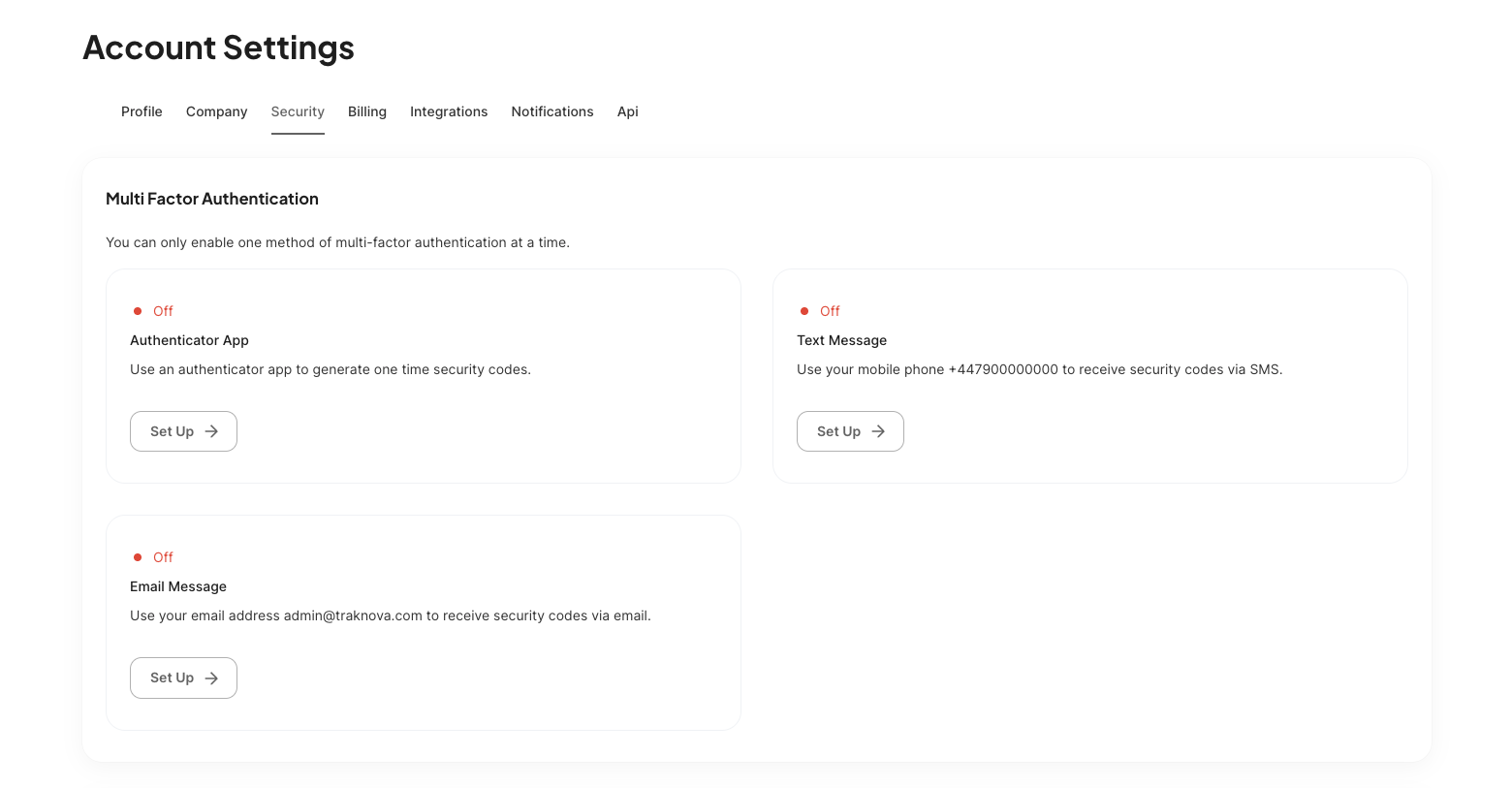
- Find the Security section.
- Choose your preferred verification method:
- Email — a code is sent to your registered email address
- SMS — a code is sent to your phone number
- Authenticator App — scan a QR code with an app on your phone
- Follow the on-screen instructions for your chosen method.
- Enter the 6-digit code you receive to confirm everything is working.
If you choose an authenticator app, you will be shown a QR code. Open your authenticator app, tap the option to add a new account, and scan the code. The app will then generate login codes for you automatically.
Logging in with 2FA
Once 2FA is turned on, here is what happens each time you sign in:
- Enter your email address and password as usual.
- You will be taken to a verification screen asking for a 6-digit code.
- Retrieve the code from your chosen method (email, SMS, or authenticator app).
- Enter the code. The form submits automatically once all 6 digits are in.
Codes sent by email or SMS are valid for a few minutes. If yours has expired, click Send Code to request a new one.
Authenticator app codes refresh every 30 seconds. If a code does not work, wait for the next one to appear in the app before trying again.
Changing your 2FA method
To switch to a different verification method:
- Open your account settings.
- Go to the Security section.
- Select the new method you want to use.
- Complete the verification steps for the new method to confirm the change.
You will need access to your current 2FA method to make this change.
Removing 2FA
If you need to remove 2FA from your account:
- Open your account settings.
- Go to the Security section.
- Select the option to remove or disable 2FA.
- You will be asked to verify your identity one more time before the change takes effect.
Limits
- Email and SMS codes can be requested up to 3 times within a 6-hour window.
- Codes expire after a few minutes if not used.
- If you enter the wrong code too many times, your account will be temporarily locked. See Account Locked for what to do.
Common problems
I am not receiving the code by email or SMS.
Check your spam or junk folder. Make sure the email address or phone number on your account is correct. You can also click Send Code to request a fresh one.
My authenticator app code is not working.
Make sure the time on your phone is set to automatic. Authenticator apps rely on your phone's clock — if the time is off, the codes will not match.
I have lost access to my phone or email.
If you cannot receive your 2FA code, contact the Traknova support team. See Account Locked.
Need help?
Use the in-app chat to contact the support team. See Using the Support Chat.