Disabling Camera Sound
By default, the dash camera may produce audio alerts for events like lane departure, driver fatigue, and vehicle attitude changes. This guide walks you through turning those off, including the camera's speaker.
We recommend using an iPhone (iOS) for this process. The Android app may not display all these pages.
Before you start
- The camera must be powered on and connected.
- Open the camera's companion app and navigate to the device settings for the camera you want to configure. If you haven't connected before, follow the Connect to Camera Through Phone guide first.
Step 1 — Disable the speaker
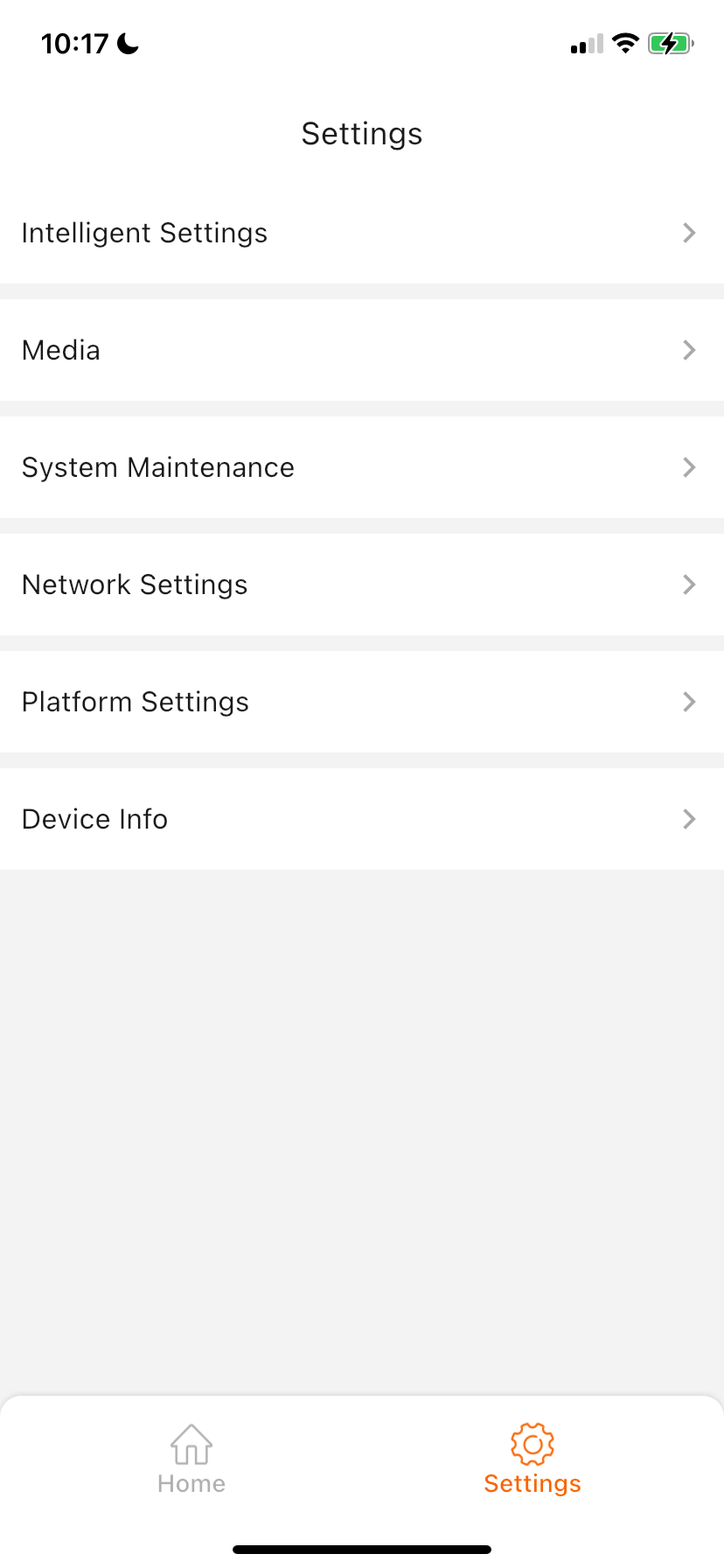
From the main Settings screen, tap Media.
Toggle Speaker Switch off.
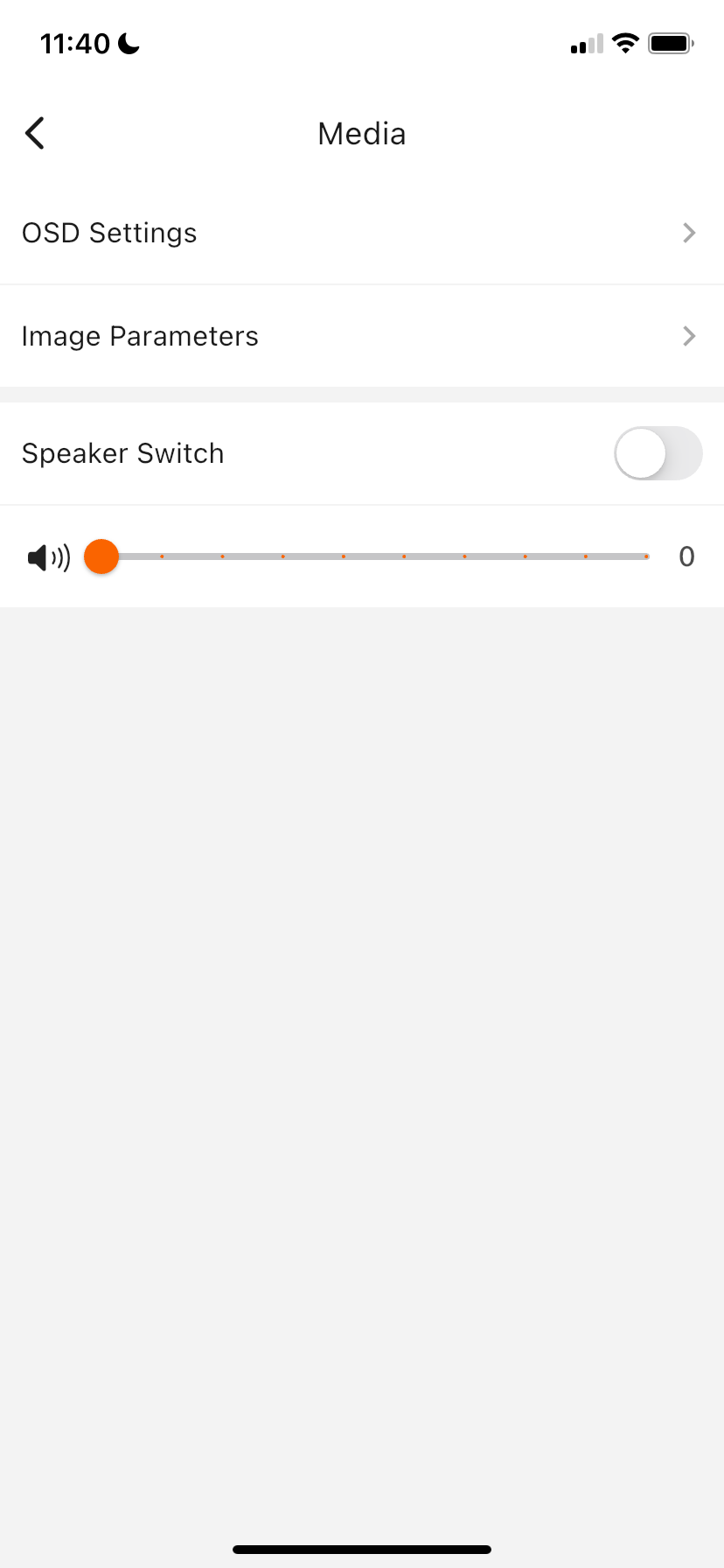
This cuts all audio output from the camera's built-in speaker.
Step 2 — Disable intelligent alarm sounds
Even with the speaker off, it is good practice to disable the individual alarm toggles. This prevents the camera from attempting to play alerts if the speaker is re-enabled later.
From Settings, tap Intelligent Settings.
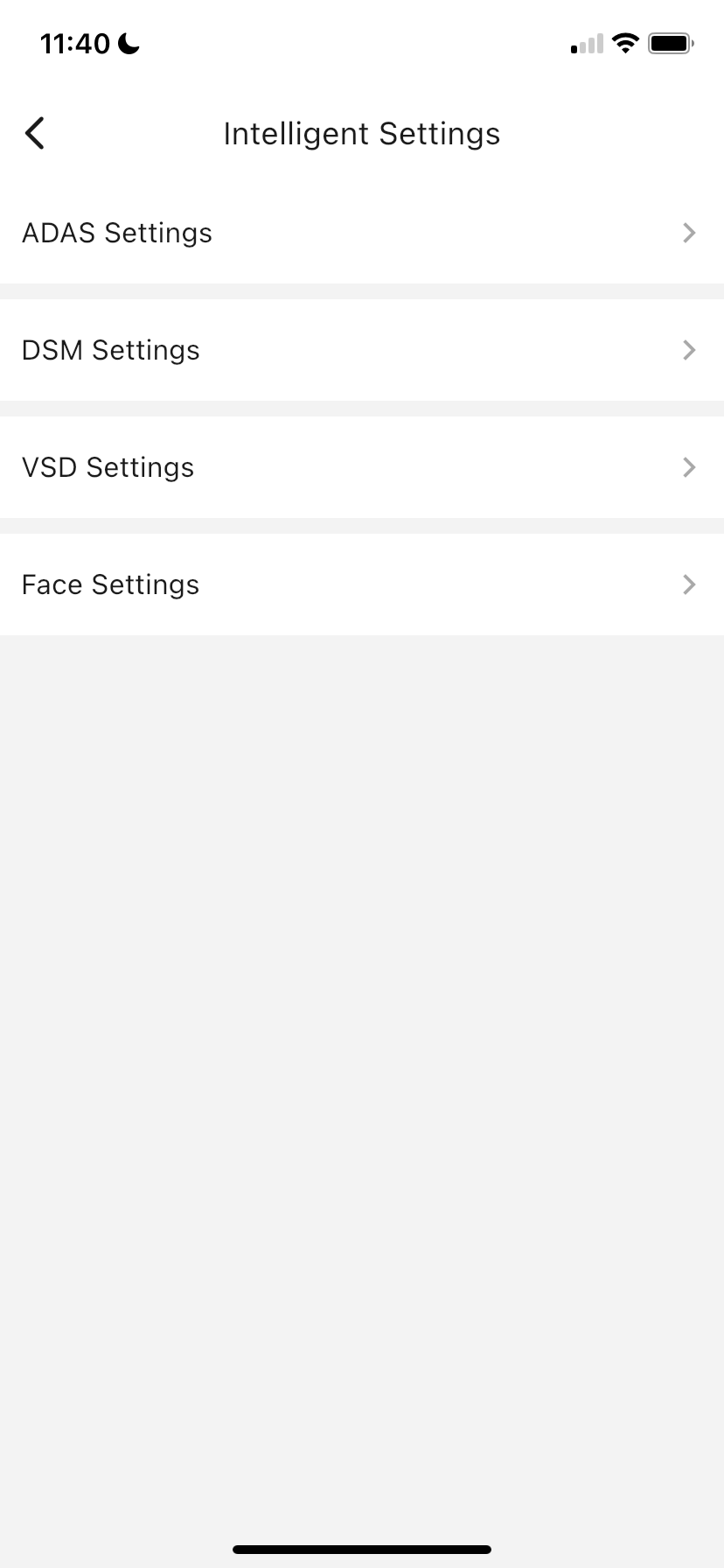
Then work through each sub-section below.
ADAS Settings
- Tap ADAS Settings.
- Toggle ADAS Alarm off.
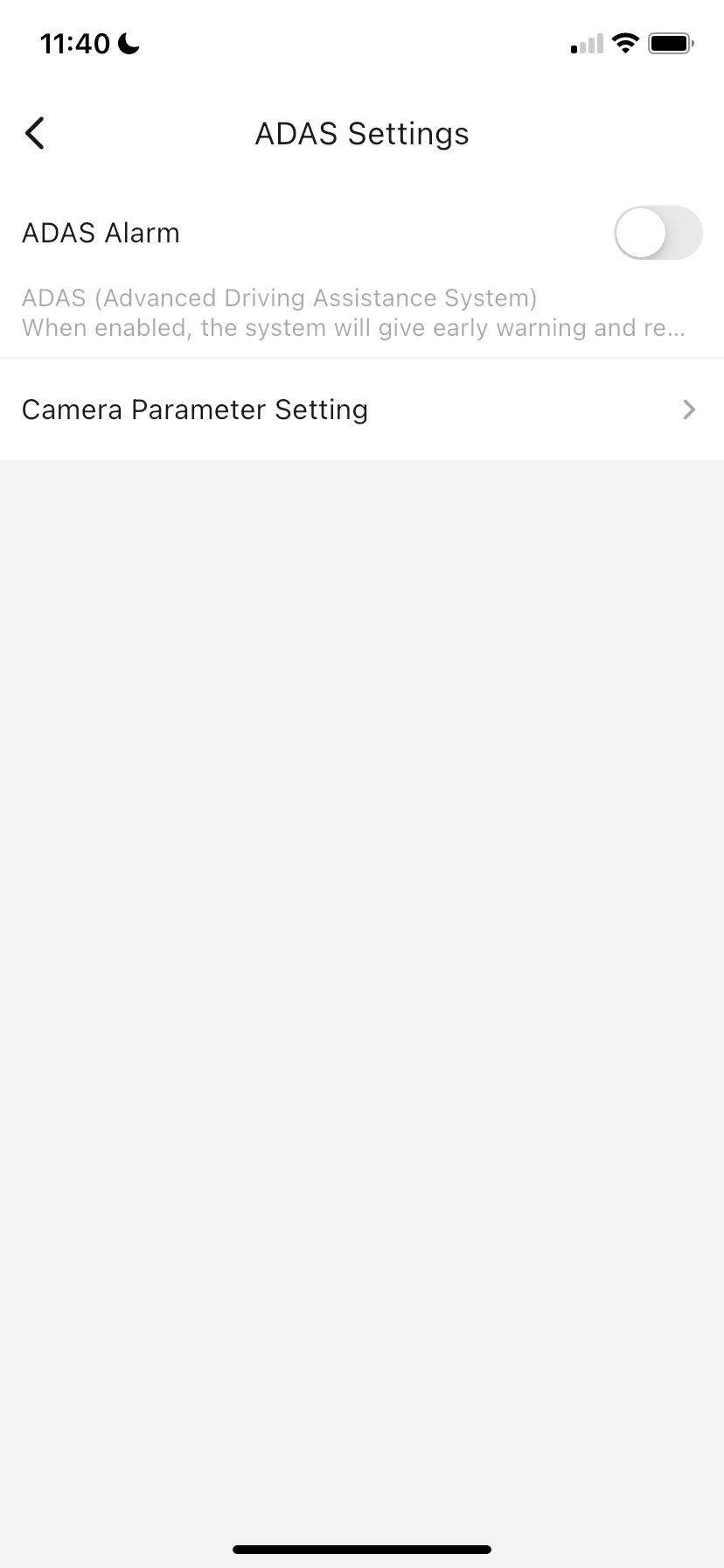
ADAS (Advanced Driving Assistance System) raises alerts for lane departure, forward collision warnings, and similar events.
DSM Settings
- Go back and tap DSM Settings.
- Toggle DSM Alarm off.
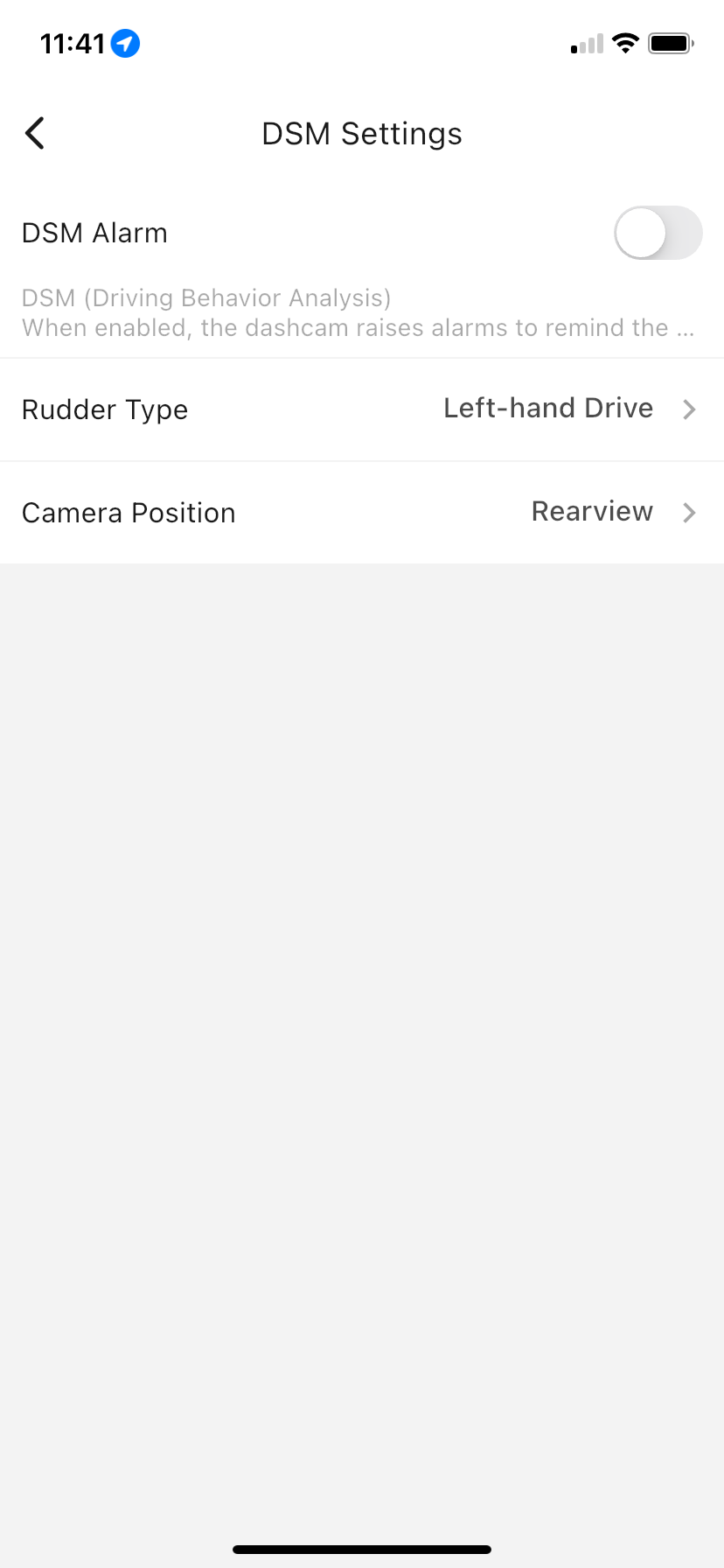
DSM (Driving Behaviour Analysis) raises alerts when it detects distracted or fatigued driving.
VSD Settings
- Go back and tap VSD Settings.
- Toggle VSD Alarm off.
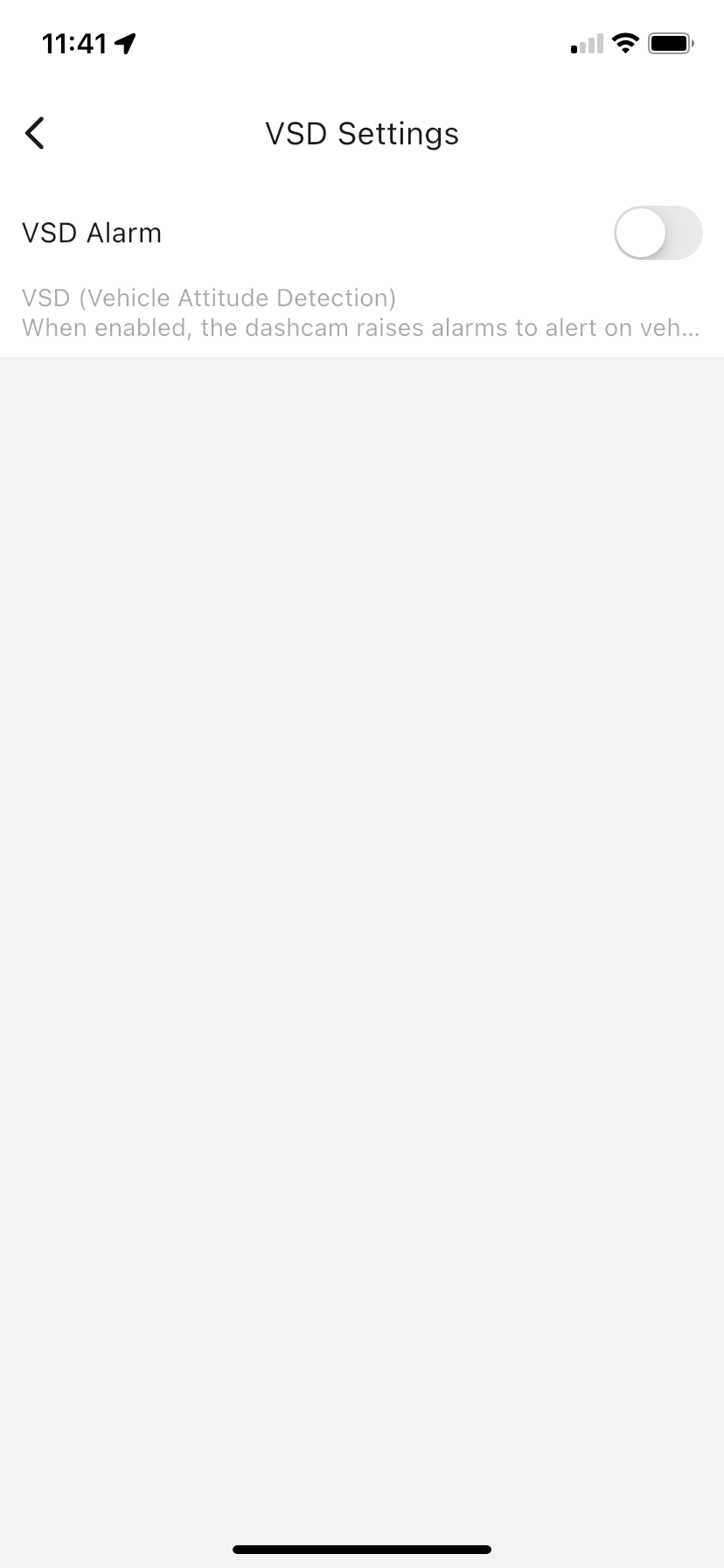
VSD (Vehicle Attitude Detection) raises alerts when it detects abnormal vehicle movement such as sharp cornering or hard braking.
Face Settings
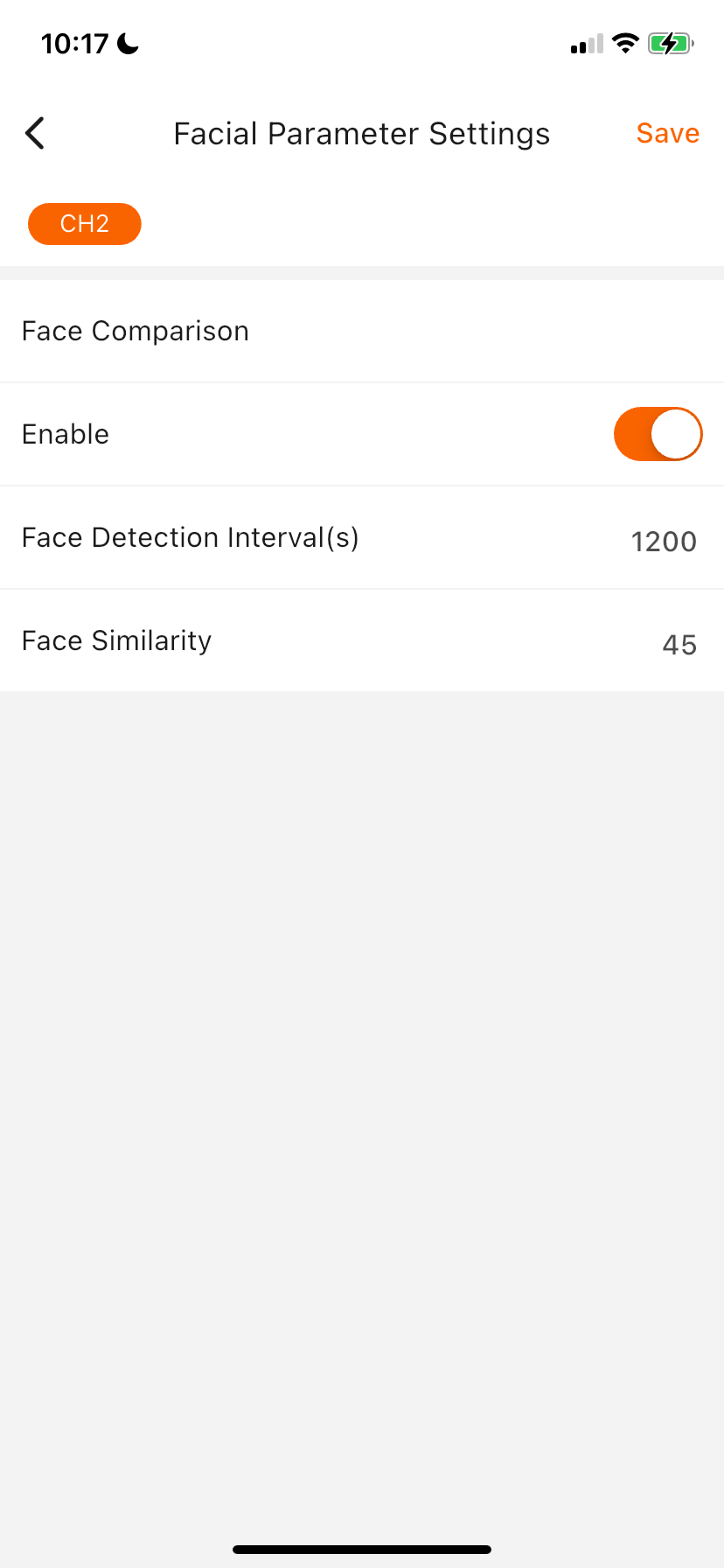
- Go back and tap Face Settings.
- Tap Facial Parameter Settings.
- Toggle Enable off under Face Comparison.
Confirming the changes
Once all toggles are off, exit the settings menu. The camera will apply the changes. You should no longer hear any audio alerts from the device.