Inviting Team Members
You can invite colleagues to join your account so they can access the platform alongside you. Each person gets their own login.
Before you start
- You need the email address of the person you want to invite.
- The person you are inviting does not need an existing account — they will create one as part of accepting the invitation.
- Invitations expire after 7 days if they are not accepted.
Sending an invitation
- Go to the Team section in the main menu.
- Click Invite User.
- Enter the email address of the person you want to invite.
- Click Send Invitation.
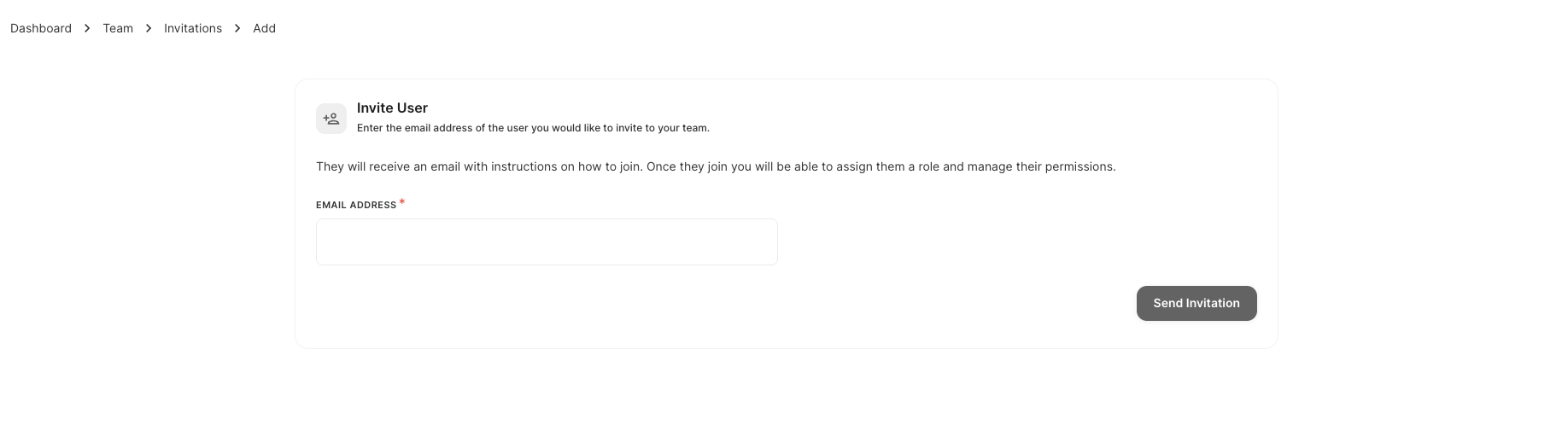
The person will receive an email with a link to join your account. Once they accept and set up their login, they will appear in your team list.
Managing pending invitations
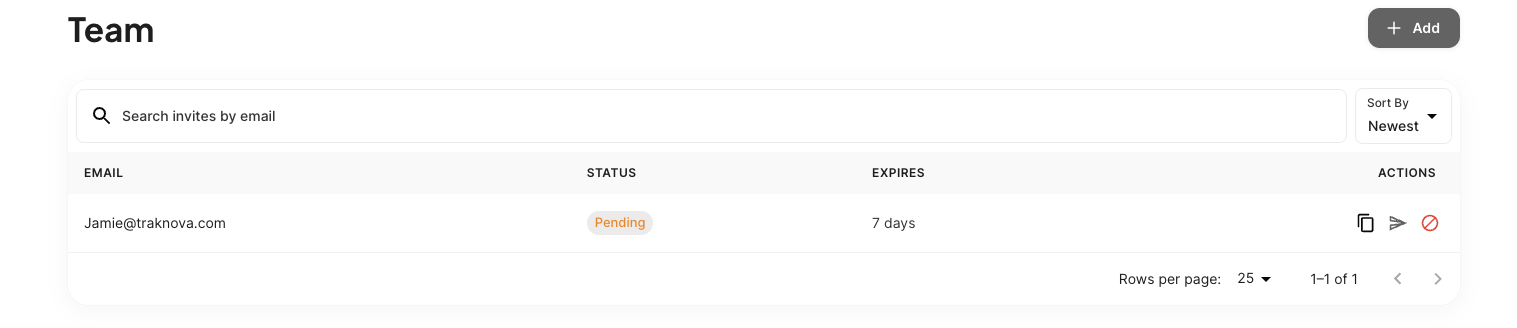
Once sent, you can see all outstanding invitations in the Team section. For each pending invitation you can:
- Copy the invite link — useful if the invitation email was not received; send the link directly instead.
- Resend the invitation — sends the email again if it has expired or been missed.
- Revoke the invitation — cancels it so the link no longer works.
Removing a team member
To remove someone from your team, find them in the team member list and select the option to remove them. Their access will be revoked immediately.
Limits
- Invitations expire after 7 days.
- Expired invitations can be resent at any time.
Common problems
The person I invited did not receive the email.
Ask them to check their spam or junk folder. You can also copy the invite link from the invitations list and share it with them directly.
The invitation shows as expired.
Click Resend next to the invitation to send a fresh one.
I sent the invitation to the wrong email address.
Revoke the incorrect invitation from the list, then send a new one to the right address.
Need help?
Use the in-app chat to contact the support team. See Using the Support Chat.