Setting Up Email Forwarding
Traknova reads your Turo booking confirmations to automatically create and track rentals on the platform. To enable this, you need to forward incoming Turo emails to Traknova's inbound address.
The steps below depend on your email provider.
Gmail
- Navigate to Gmail and log in to your account.
- Click the gear icon in the top right corner and select See all settings.
- Click the Forwarding and POP/IMAP tab.
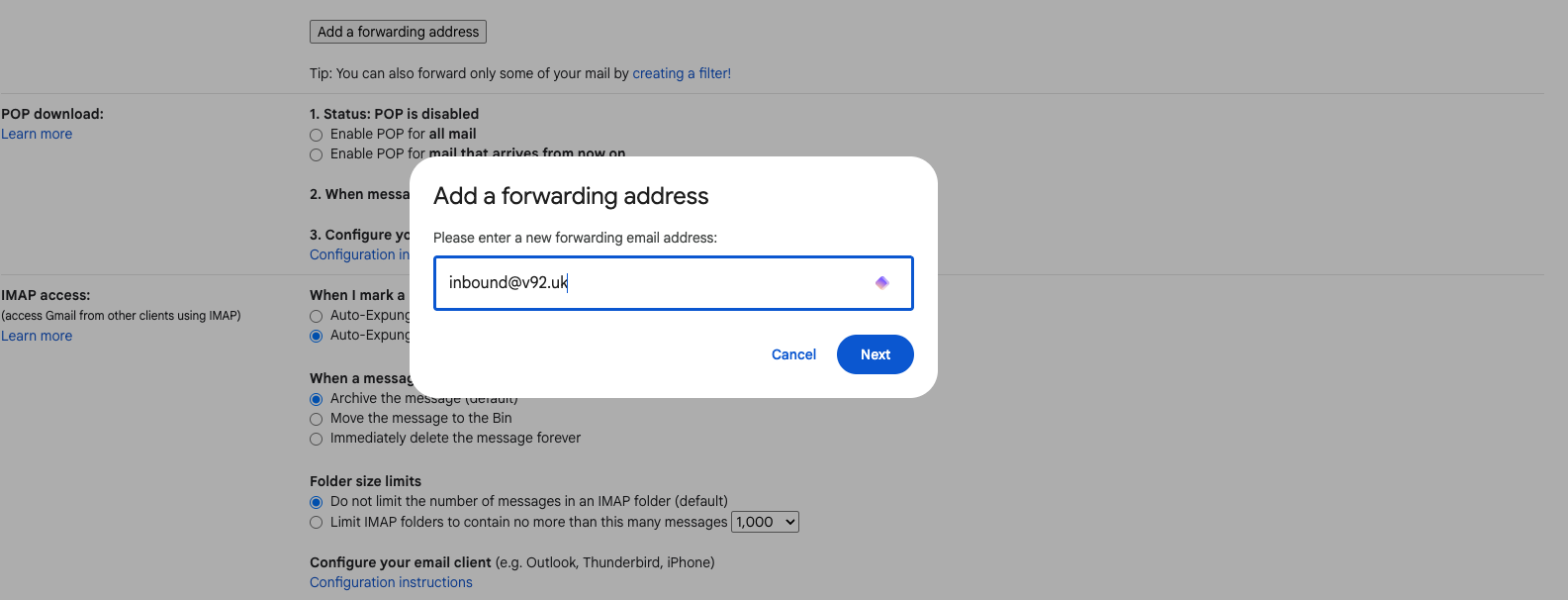
- Click Add a forwarding address.
- Enter
inbound@v92.ukand click Next. - Click Proceed, then OK to confirm.
- The Traknova team will verify the address — this can take up to an hour.
- Once verified, return to the Forwarding and POP/IMAP tab.
- In the Forwarding section, select Forward a copy of incoming mail to and choose
inbound@v92.ukfrom the dropdown. - Click Save Changes.
Outlook and Hotmail
- Click the gear icon in the top right corner to open Settings.
- Click the Email tab.
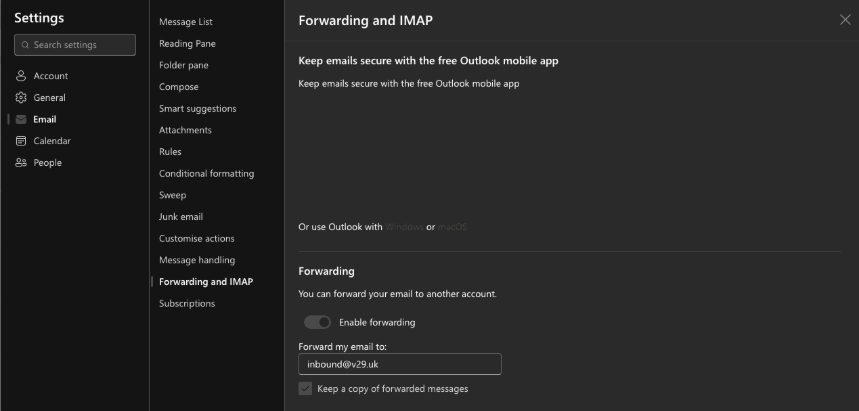
- Scroll down to the Forwarding section.
- Click Enable forwarding.
- Enter
inbound@v92.ukas the forwarding address. - Make sure Keep a copy of forwarded messages is selected.
- Click Save.
Common problems
I have completed the Gmail steps but forwarding is not working.
Make sure you clicked Save Changes at the bottom of the Forwarding and POP/IMAP tab after selecting the forwarding address. The address also needs to be verified before forwarding activates — if it has been more than an hour, contact support.
I cannot see the forwarding option in Gmail.
Some Google Workspace accounts have forwarding disabled by an administrator. You may need to ask your IT team to enable it, or contact Traknova support to discuss an alternative setup.
Turo booking emails are not appearing in Traknova.
Check that the forwarding rule is active and that Turo confirmation emails are being delivered to the inbox you set up forwarding from (not a filtered folder).
Need help?
Use the in-app chat to contact the support team. See Using the Support Chat.