Renter Access
When a Turo booking is linked to Traknova, you can give your renter access to a booking portal where they can unlock and lock the vehicle, view its live location, and get help if something is not working.
Sending the link to your renter
The easiest way to share access is directly from the calendar:
- Go to Calendar in the main menu.
- Click on the booking.
- Click the share icon at the bottom of the booking dialog.
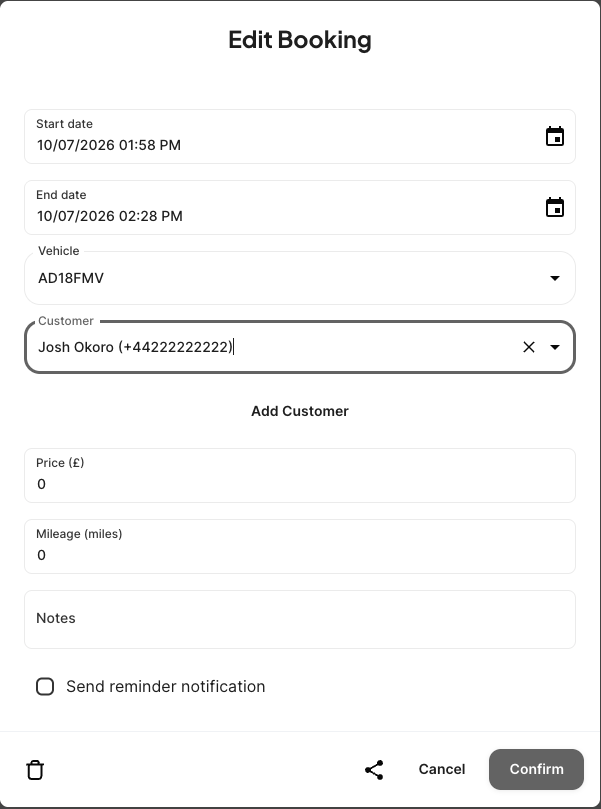
This copies a personalised link to your clipboard that includes the renter's reservation number and phone number. When the renter opens it, they are taken straight to their booking without needing to enter anything.
Paste the link into Turo chat, a text message, or however you normally communicate with renters.
The renter does not need to create a Traknova account.
What your renter will need
If the renter cannot use the link and needs to log in manually, they can go to app.traknova.com/bookings and enter either:
- Their Turo reservation number and the phone number associated with their booking, or
- Just their phone number to receive a verification code by SMS.
The portal becomes accessible close to the rental start time and closes shortly after it ends.
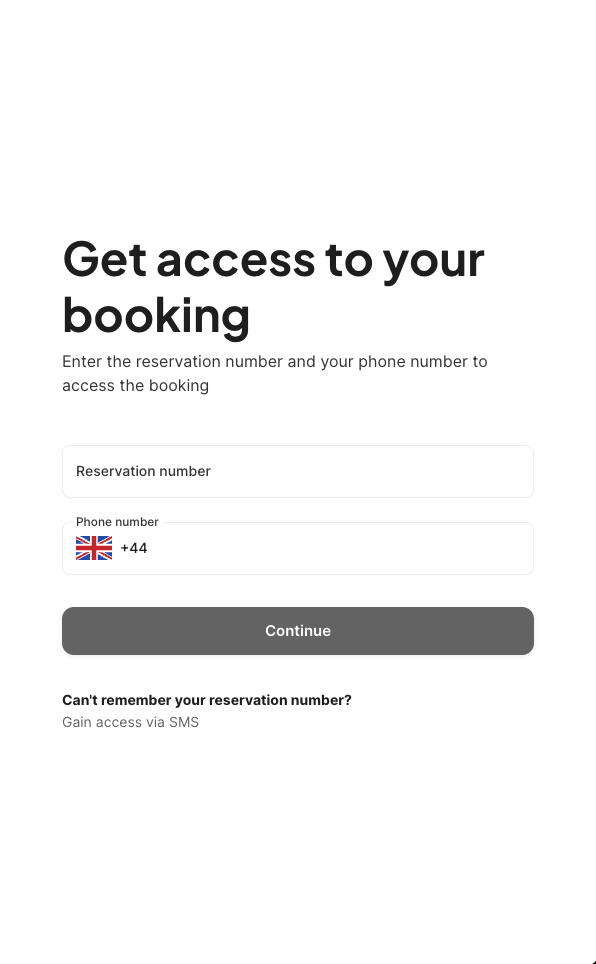
Manual login: by reservation number
- The renter opens
app.traknova.com/bookings. - They enter their reservation number from the Turo booking confirmation.
- They enter the phone number used when the Turo booking was made.
- They click Continue and are taken straight to their booking.
Manual login: by SMS
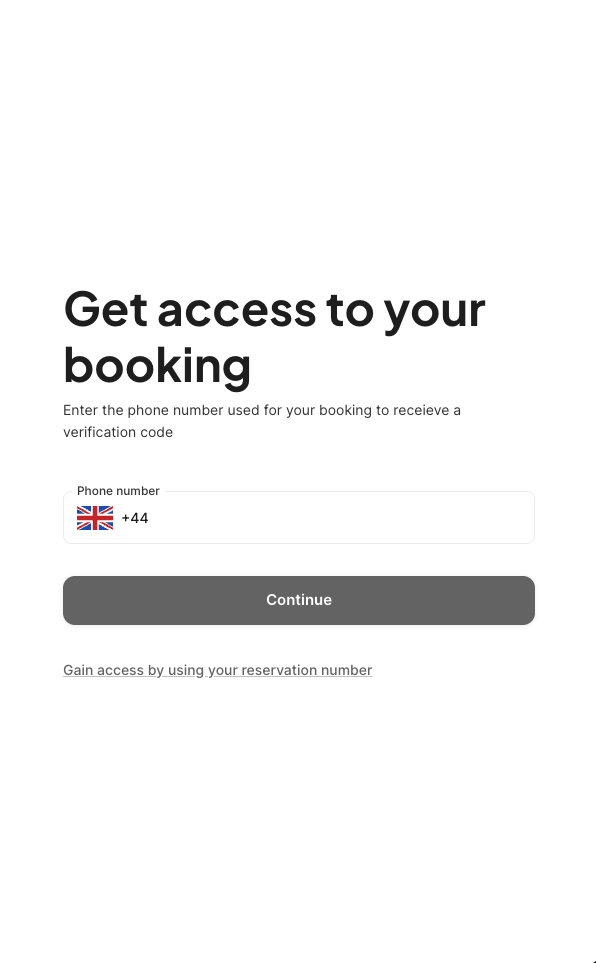
If the renter does not have their reservation number to hand:
- The renter opens
app.traknova.com/bookings. - They click Gain access via SMS.
- They enter the phone number used when the Turo booking was made.
- They click Continue and receive a verification code by SMS.
- They enter the code and click View booking.
What your renter can see
Once logged in, the renter has access to three tabs.
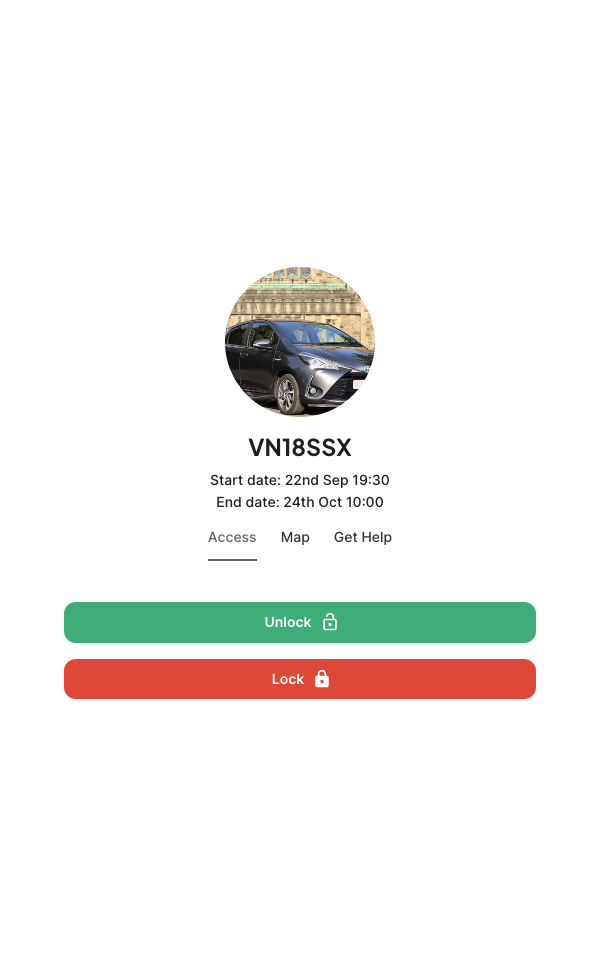
Access
The Access tab lets the renter lock and unlock the vehicle remotely using buttons on screen.
Map
The Map tab shows the vehicle's live location and address. The renter can tap Get directions to open their device's maps app.
Get Help
The Get Help tab covers the most common issues a renter might run into:
- Lock / unlock not working — Tapping Get help alerts the Traknova team. If there is no change after 5 minutes, the renter should contact you directly.
- Vehicle not starting — Tapping Start vehicle attempts to disengage the immobiliser remotely.
- Can't find vehicle — The renter is directed to the Map tab.
Common problems
The renter says the portal cannot find their booking.
Check that the reservation number and phone number on the Turo booking match what they are entering. The portal only becomes active close to the rental start time. Use the share icon from the calendar to send a pre-filled link instead.
The renter says the link is not working after the trip ended.
Access closes shortly after the rental end time. If you need to extend access, contact Traknova support.
The renter has not received the SMS code.
Confirm that the phone number on the Turo booking is correct.
Need help?
Use the in-app chat to contact the support team. See Using the Support Chat.