Live Tracking
The map view shows you where all your vehicles are right now. You can also view the history of any vehicle's journeys and replay past trips in full.
Before you start
- Vehicles need an active tracking device fitted or connected to appear on the map.
- Location updates are shown in real time as vehicles move.
Viewing live vehicle locations
- Go to the Vehicles section in the main menu.
- Select Map.
- All vehicles with an active tracker will appear on the map.
- Click on any vehicle to see its current details.
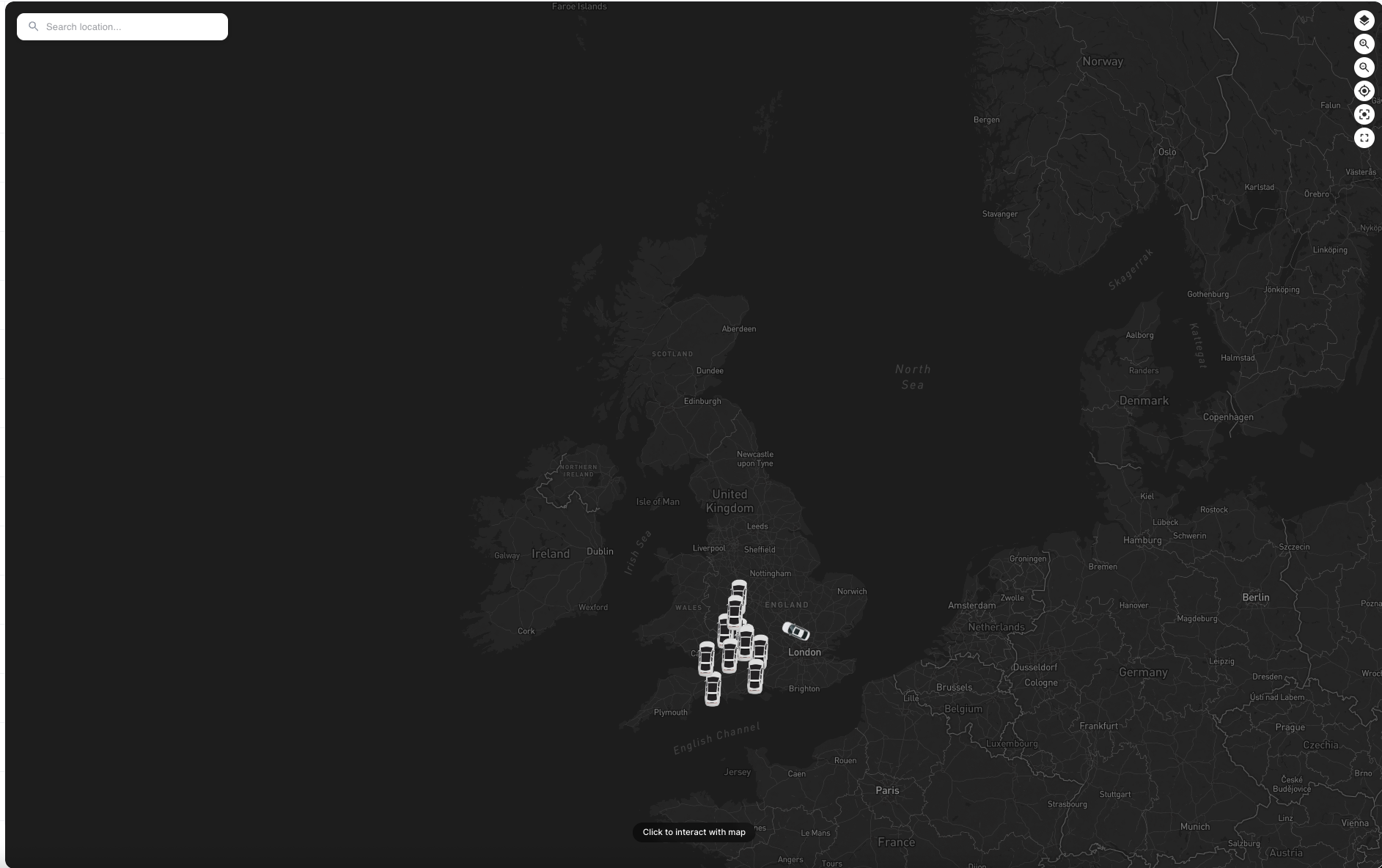
Each vehicle on the map shows:
- Where it is right now
- Which direction it is heading
- How fast it is moving
Viewing trip history
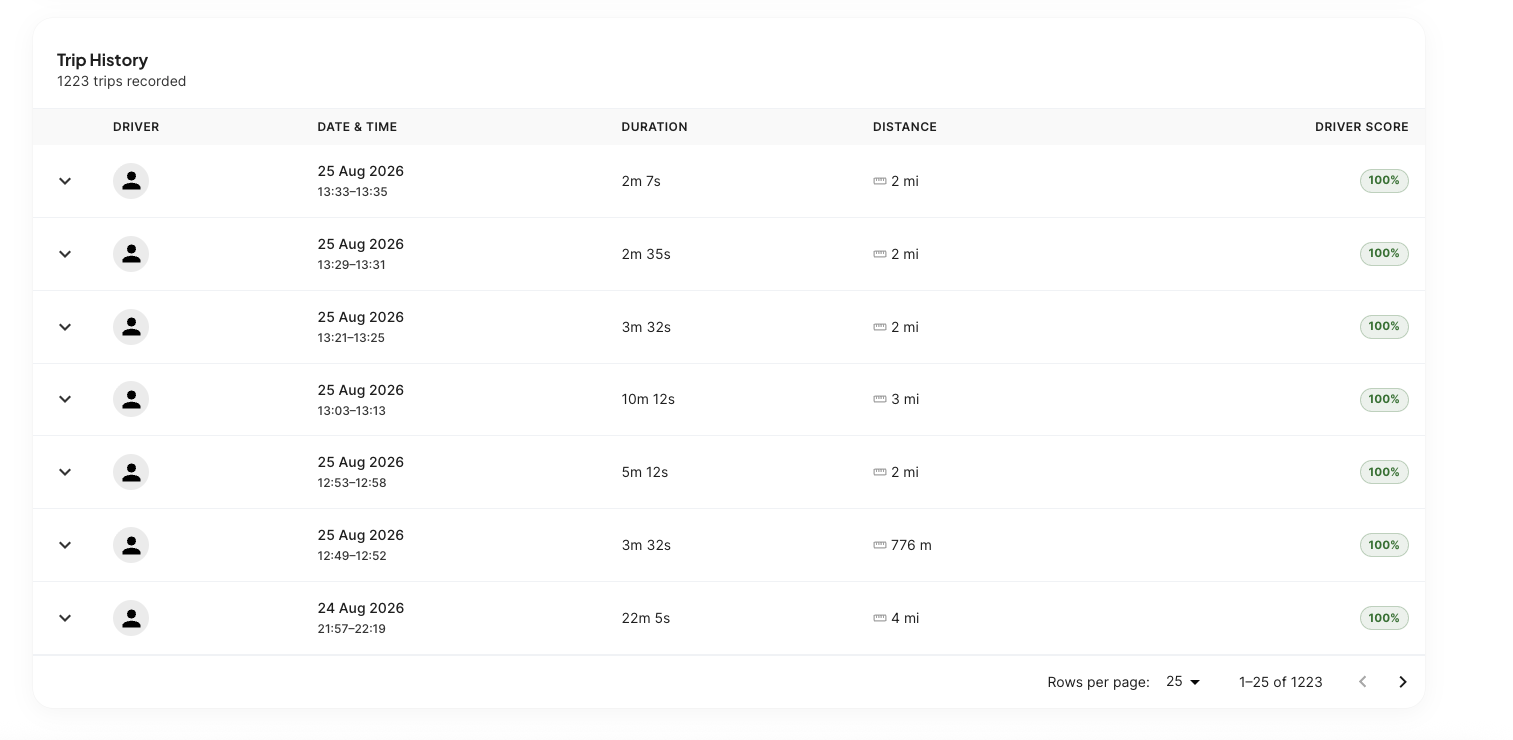
Below the live map, you can see a log of recent journeys for your vehicles.
Each trip in the list shows:
- The driver assigned to that journey
- The date and time it started
- How long the trip lasted
- The total distance covered
- A driver score for that journey
Click the arrow next to any trip to expand it and see the start and end locations.
Replaying a trip
To watch a full playback of any past journey:
- Find the trip in the history list.
- Click Play Trip.
- A map will open showing the route taken.
- Use the Play and Pause buttons to control playback.
- Drag the slider to jump to any point in the journey.
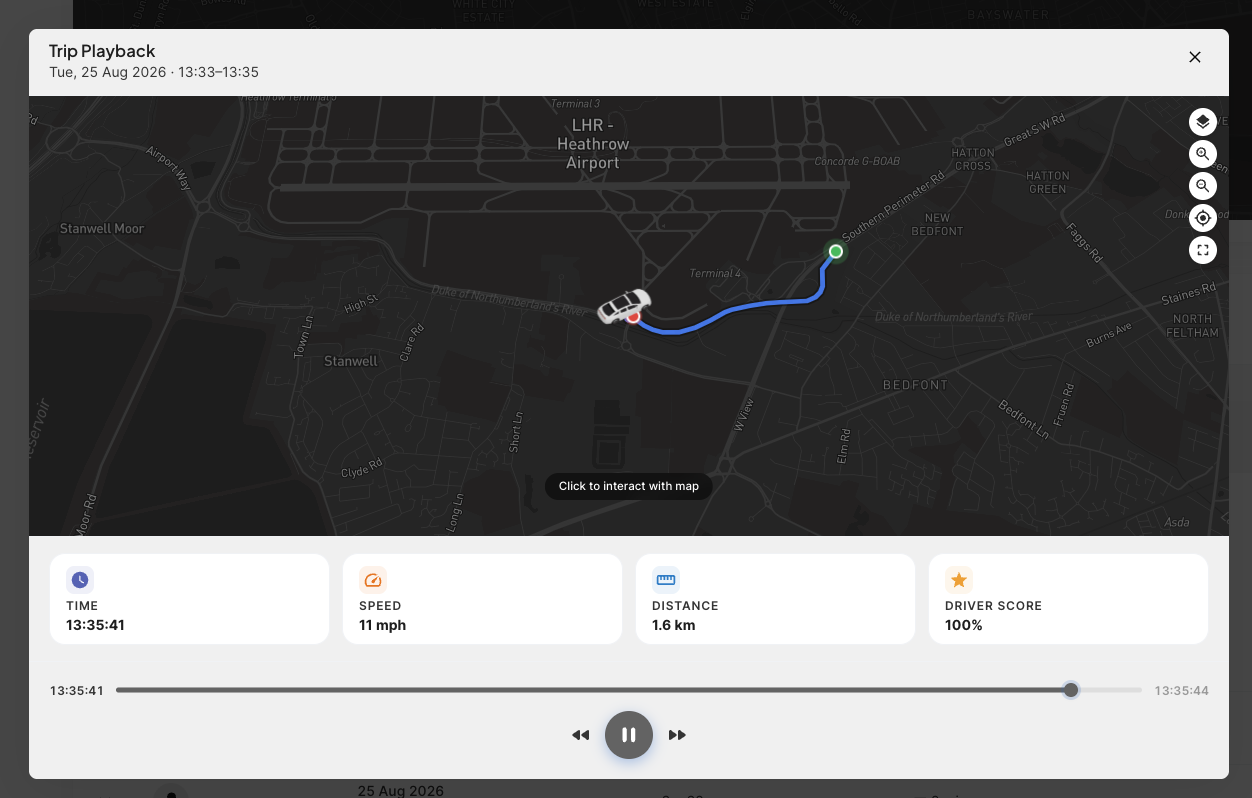
During playback you can see live data from that journey — including speed and driver score — at any moment along the route.
Common problems
A vehicle is not showing on the map.
Check that:
- The tracking device is powered on and has a signal
- The vehicle has been added to your account — see Adding Vehicles
The map is showing an old location.
If a vehicle is in an area with no signal, the last known location is shown instead of a live one. The location will update once the vehicle is back in range.
Trip history is empty.
Trips are only recorded when a tracking device is active and the vehicle is moving. If a vehicle or its device has just been added, it may take a short time before journeys start appearing.
Need help?
Use the in-app chat to contact the support team. See Using the Support Chat.