Managing Geofences
A geofence is a virtual boundary you draw on a map around a real-world location — such as a depot, a customer site, or a restricted area. Once set up, you can receive alerts whenever a vehicle enters or leaves that zone.
For information on setting up the alerts themselves, see Geofence Alerts.
Before you start
- You need to know the location you want to create a zone around.
- Vehicles must already be added to your account before you can assign them to a geofence.
Creating a geofence
- Go to the Vehicles section in the main menu.
- Select Geofences.
- Click Add to create a new geofence.
- Enter a name for the zone in the Zone Name field.
- Click Draw Zone on the map, then click and drag to mark out the boundary.
- Once you are happy with the shape, click Save Zone.
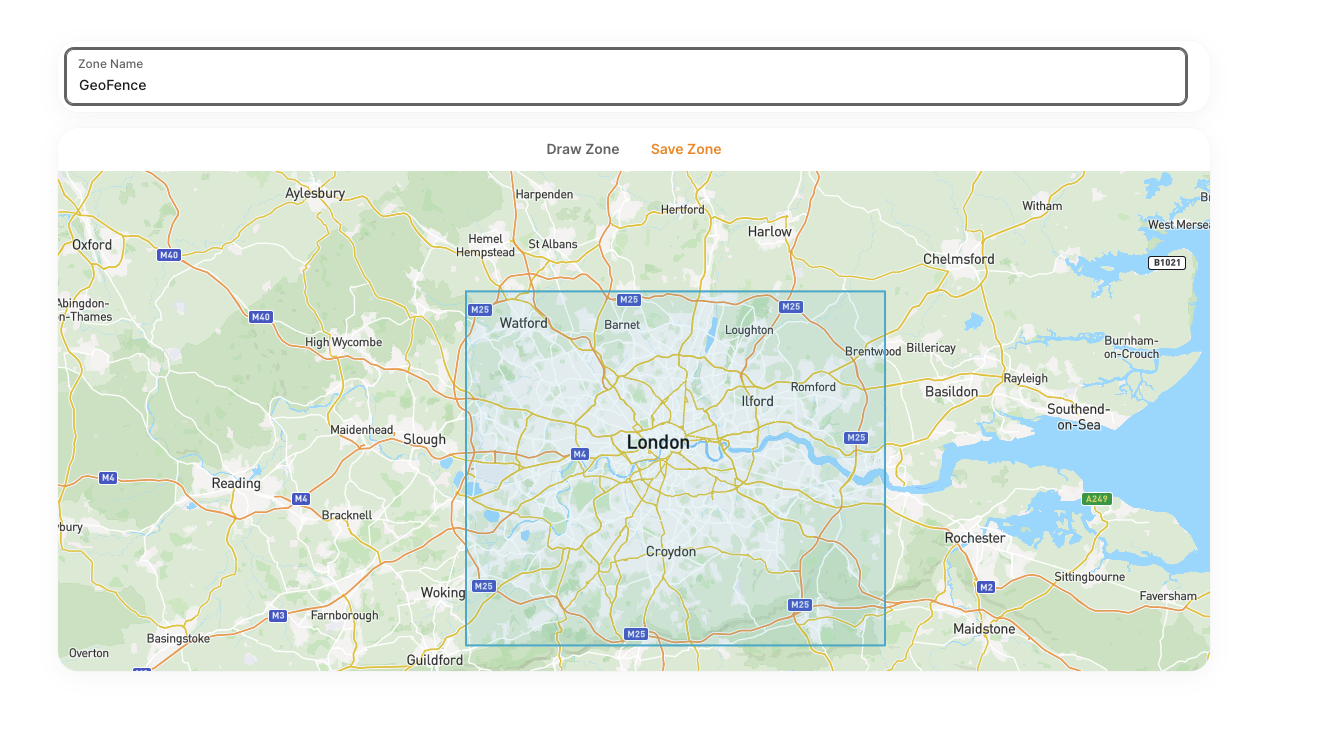
Zones are drawn as rectangles. If the area you want to cover has an irregular shape, you can create multiple smaller geofences to cover it.
Activating and deactivating a geofence
Saving a geofence does not automatically switch it on. To start receiving alerts from it:
- Open the geofence from the geofences list.
- Click Activate.
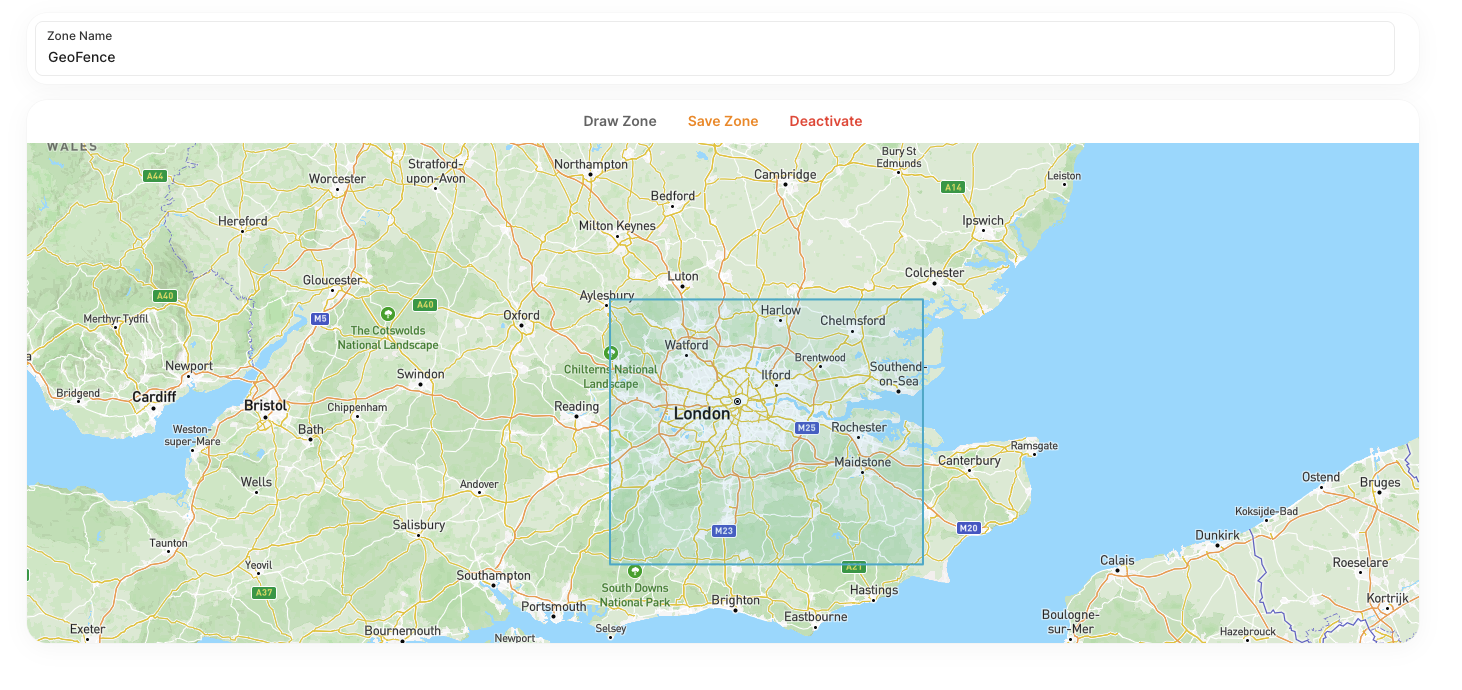
To temporarily pause alerts without deleting the geofence, click Deactivate. You can switch it back on at any time.
Assigning vehicles to a geofence
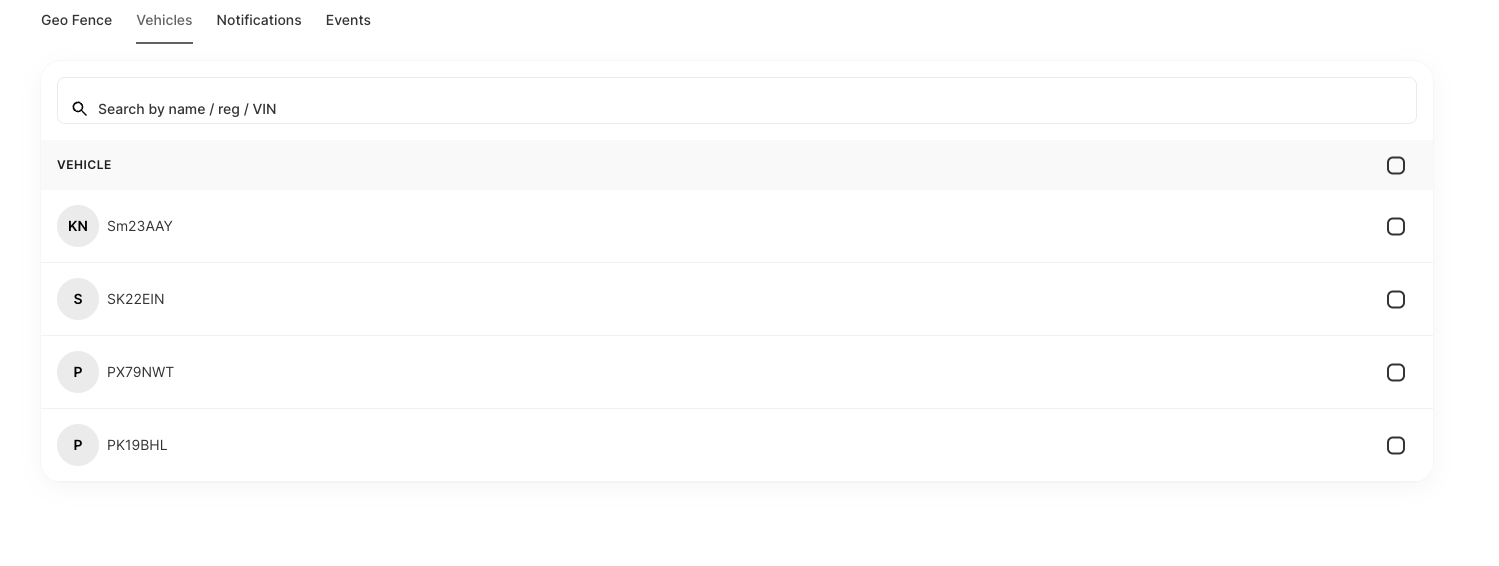
After creating a geofence, you can choose which vehicles it applies to.
- Open the geofence from the list.
- Find the vehicles section within the geofence settings.
- Select the vehicles you want to include.
- Save your changes.
A vehicle can be assigned to more than one geofence at the same time.
Editing a geofence
To update the name or boundary of an existing geofence:
- Go to Geofences in the Vehicles section.
- Click on the geofence you want to edit.
- Update the name field, or click Draw Zone to redraw the boundary on the map.
- Click Save Zone when you are done.
Deleting a geofence
To remove a geofence, open it from the list and select the option to delete it. This cannot be undone.
Common problems
I cannot save the zone.
Make sure you have:
- Entered a name in the Zone Name field
- Drawn a boundary on the map using the Draw Zone button
I am not receiving any alerts for my geofence.
Check that:
- The geofence status is set to Active
- The relevant vehicles are assigned to the geofence
- Alert notifications are configured correctly — see Geofence Alerts
I want to change the boundary.
Open the geofence, click Draw Zone, and draw the new boundary. Your previous shape will be replaced when you click Save Zone.
Need help?
Use the in-app chat to contact the support team. See Using the Support Chat.