Sending Commands
The Commands tab lets you control a vehicle remotely — locking and unlocking doors, immobilising the engine, opening the boot, and triggering the horn or lights. All of this is done directly from the vehicle page without needing to be near the vehicle.
Before you start
- Remote commands are only available if your subscription includes Remote Access or an Immobiliser feature.
- The vehicle's tracking device must be active and connected.
- Commands sent while the device is offline will still be queued and delivered once it reconnects.
Finding the Commands tab
- Go to Vehicles in the main menu.
- Click on the vehicle you want to control.
- Select the Commands tab.
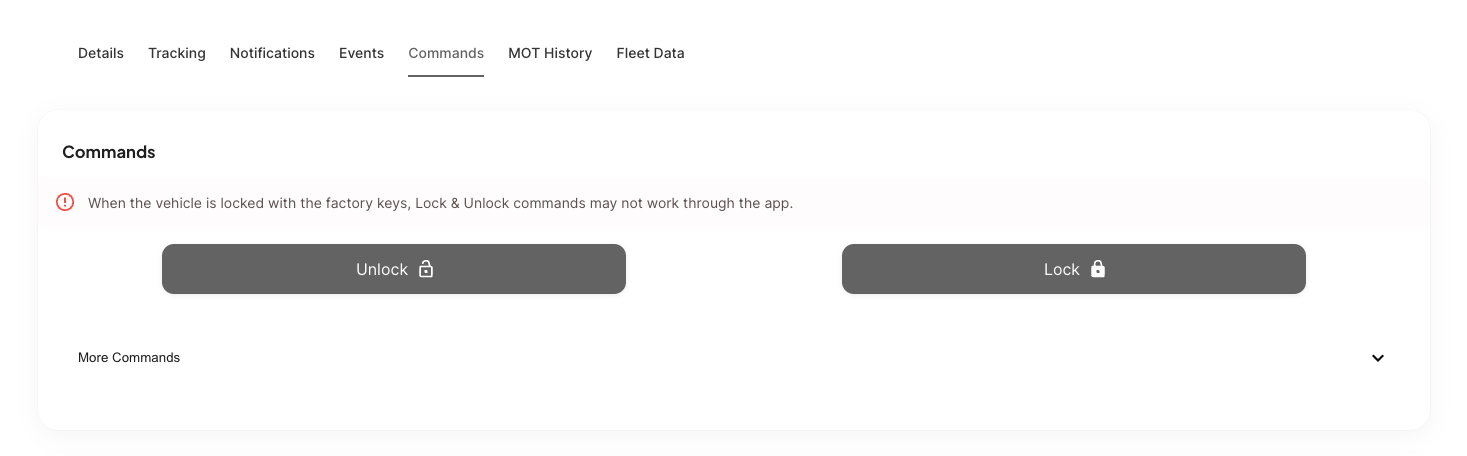
Available commands
The commands shown depend on what your subscription includes. You may see some or all of the following.
Lock and Unlock
Unlock — sends a signal to unlock all doors on the vehicle.
Lock — sends a signal to lock all doors.
If the vehicle was locked using the physical key fob, the Lock and Unlock commands from the app may not work.
Enable and Disable (Immobiliser)
These commands control whether the engine can be started.
Enable — allows the vehicle to start as normal.
Disable — prevents the engine from starting. Use this if a vehicle is reported stolen or needs to be taken out of service.
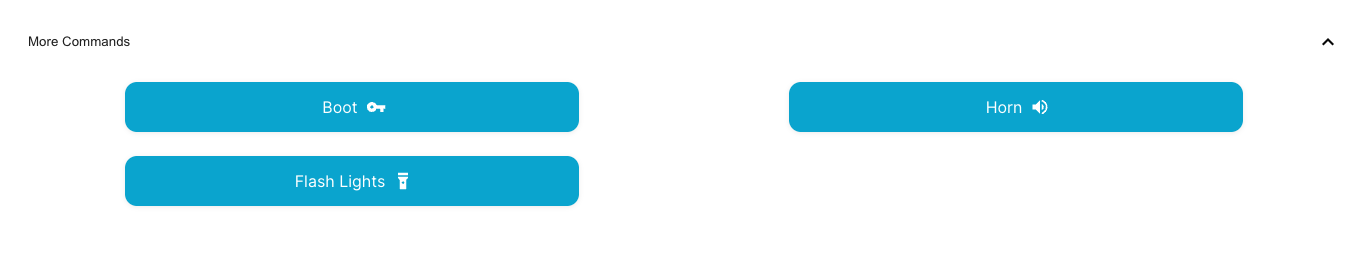
More Commands
Click More Commands to expand additional options:
Boot — opens the boot (trunk) of the vehicle remotely.
Horn — triggers the vehicle's horn. Useful for locating a vehicle in a car park or confirming it has responded to a command.
Flash Lights — flashes the vehicle's indicator lights. Also useful for locating a parked vehicle.
What happens after you send a command
Once you tap a command button, it is sent to the vehicle immediately. The button will show a loading state for a few seconds while the command is being processed.
A confirmation message will appear at the bottom of the screen to let you know the command has been sent.
Commands require a live 4G connection to reach the vehicle. If the vehicle is in an area with no signal — such as an underground car park — the command will not go through until the vehicle is back in range.
Command log
Below the command buttons, there is a log showing all commands that have been sent to this vehicle, including who sent them and when. This gives you a full audit trail of remote actions taken.
Common problems
The buttons are greyed out and I cannot click them.
This usually means one of the following:
- Another command is already being processed — wait a few seconds and try again
- Your subscription does not include the feature for that command
- The vehicle's tracking device is not active
I sent a command but nothing happened.
Check that the vehicle has a 4G signal. Commands will not be delivered if the vehicle is in an area with poor or no coverage, such as an underground car park. Wait until the vehicle is back in range and try again. If the problem continues, contact support.
The Lock/Unlock command is not responding.
If the vehicle was locked with the physical keys, the app may not be able to override it. Try unlocking with the key first, then use the app.
Need help?
Use the in-app chat to contact the support team. See Using the Support Chat.